Automatische Abrechnungszeiträume erstellen
For Procore Customers in the United States
 When your company applies the 'Owners English' or 'Specialty Contractors English' point-of-view dictionary, you'll see different tool names and term changes in the user interface. Learn how to apply the dictionary options.
- To learn the differences: Show/Hide
Ziel
Erstellen automatischer Abrechnungszeiträume für Rechnungen des Subunternehmers eines Projekts.
Hintergrund
Wichtige Hinweise
Voraussetzungen
Schritte
- Navigieren Sie zum Rechnungen-Tool des Projekts.
- Optional: Klicken Sie auf die Registerkarte Abrechnungszeiträume.
- Klicken Sie auf die Schaltfläche Abrechnungszeitraum erstellen .

- Klicken Sie im Dialogfeld „Abrechnungszeitraum einrichten“ auf Automatisch.
- Konfigurieren Sie unter "Automatisch" die Einstellungen des Abrechnungszeitraums wie folgt:
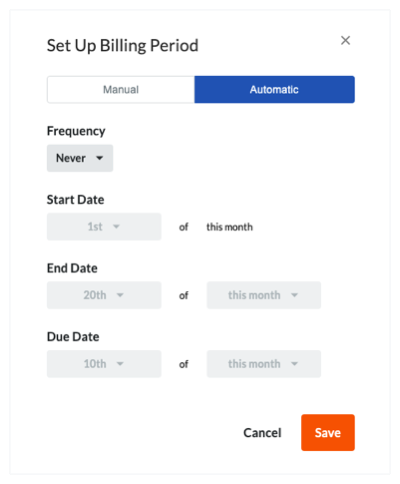
- Häufigkeit
- Monatlich. Wählen Sie diese Option und dann das Datum, an dem der Abrechnungszeitraum beginnen soll.
- Wöchentlich. Wählen Sie diese Option und dann das Datum, an dem der Abrechnungszeitraum beginnen soll.
- Nie. Wählen Sie diese Option, um nie einen automatischen Abrechnungszeitraum zu erstellen.
Tipp
Wann sollte ich die Option „Nie“ wählen? Wenn Sie Procore zuvor so konfiguriert haben, dass es automatisch neue Abrechnungszeiträume erstellt, können Sie diesen Vorgang zu einem späteren Zeitpunkt abbrechen, indem Sie auf Abrechnungszeitraum erstellen klicken und die Option „Nie“ auf der Registerkarte Automatisch wie oben beschrieben auswählen. Dadurch werden die vorherigen Einstellungen des Tools zur Erstellung von Abrechnungszeiträumen aufgehoben und Procore legt keine neuen mehr an.
- Startdatum. Wählen Sie das Datum jedes Monats aus, an dem der Abrechnungszeitraum beginnen soll.
Hinweis
- Um automatische Abrechnungszeiträume zu erstellen, die nach Ihrem ausgewählten „Startdatum“ erfolgen, müssen Sie den ersten Abrechnungszeitraum für Ihr Projekt manuell mit dem Rechnungen-Tool erstellen. Siehe Manuelle Abrechnungszeiträume erstellen.
- Beachten Sie, dass Procore automatische Abrechnungszeiträume für zukünftige Zeiträume am Startdatum der zukünftigen Zeiträume erstellt. Wenn Sie beispielsweise automatisch Abrechnungszeiträume erstellen möchten, die am Ersten des Monats beginnen, erstellt Procore automatisch den neuen Abrechnungszeitraum am Ersten jedes Monats.
- Enddatum. Wählen Sie das Datum jedes Monats aus, an dem der Abrechnungszeitraum enden soll.
- Fälligkeitstermin. Wählen Sie das Datum jedes Monats, an dem die Rechnung fällig sein soll.
- Häufigkeit
- Klicken Sie auf Speichern.
Nächste Schritte
If you would like to learn more about Procore's invoice management software and how it can help your business, please visit our construction invoice management software product page  .
.
.