

Zeiterfassungsliste überprüfen (Android)
Hintergrund
Sobald Sie eine Zeiterfassungsliste erstellt haben, können Sie Unterschriften von Ihren Außendienstmitarbeitern einholen. (Siehe Zeiterfassungslisten unterschreiben (Android) und Zeiterfassungslisten unterschreiben (iOS).) Anschließend können Sie die Zeiterfassungslisten auf Richtigkeit überprüfen.
Beispiel
Da jedes Bauunternehmen anders ist, können die Teammitglieder, die Sie für Ihren Zeiterfassungsprozess auswählen, bezüglich der Rollen und Überlegungen in diesem Beispiel abweichen:
-
Poliere, Bauleiter und andere Aufsichtspersonen. Dies sind die Teammitglieder, die Arbeitszeitkarteneinträge und Zeiterfassungslisten für ein Projekt erstellen. Sie sollten diesen Teammitgliedern mindestens die Berechtigungen "Schreibgeschützt" oder "Standard" für das Zeiterfassungslisten-Tool auf Projektebene und die granulare Berechtigung "Zeiterfassungslisten überprüfen und bearbeiten" für eine Vorlage für Projektberechtigungen erteilen. Dies ermöglicht es diesen Benutzern, neue Zeiterfassungslisten mit dem Status "Ausstehend" zu erstellen und den Status einer Zeiterfassungsliste im Zeiterfassungslisten-Tool auf Projektebene auf "Überprüft" zu ändern. Darüber hinaus können sie in Zeiterfassungslisten auf Projektebene, für die sie die Berechtigung besitzen, den Status von "Ausstehend" in "Geprüft" ändern, indem sie das Zeiterfassungslisten-Tool auf Unternehmensebene verwenden.
-
Projektmanager und andere Administratoren oder Führungskräfte. Dies sind die Teammitglieder, die "geprüfte" Zeiterfassungslisten genehmigen, bevor sie sie zur Bearbeitung an Ihr Buchhaltungs-/Gehaltslisten-Team übergeben. Sie sollten diesen Teammitgliedern mindestens die Bezeichnung "Admin" für das Zeiterfassungslisten-Tool auf Projektebene zur Verfügung stellen. Wenn sie jedoch für die Überwachung der Zeiterfassung für mehrere Projekte verantwortlich sind, können Sie ihnen auch "Admin"-Berechtigungen für das Zeiterfassungslisten-Tool auf Unternehmensebene erteilen.
-
Buchhaltung, Gehaltsabrechnung und andere Administratoren oder Führungskräfte. Dies sind die Teammitglieder, die die Zeiterfassungslisten als "abgeschlossen" markieren. Diese Funktion ist nur im Zeiterfassungslisten-Tool auf Unternehmensebene verfügbar, daher sollten Sie diesen Benutzern "Admin"-Berechtigungen für beide Zeiterfassungslisten-Tools auf Projektebene zuweisen. Dadurch können Benutzer auf das Zeiterfassungslisten-Tool auf Unternehmensebene zugreifen. Außerdem können Benutzer Projektdaten im Tool auf Unternehmensebene anzeigen.
Wichtige Hinweise
-
Erforderliche Benutzerberechtigungen
Tipp
Sie können einen Arbeitszeitkarteneintrag bei Bedarf bearbeiten.
Voraussetzungen
-
Erstellen Sie eine Zeiterfassungsliste auf eine der folgenden Arten:
Schritte
-
Überprüfen eines einzelnen Arbeitszeitkarteneintrags
-
Zeiterfassungsliste überprüfen
Überprüfen eines einzelnen Arbeitszeitkarteneintrags
-
Rufen Sie auf Ihrem Android-Mobilgerät das Zeiterfassungslisten-Tool des Projekts auf.
-
Navigieren Sie zu dem Arbeitszeitkarteneintrag, den Sie überprüfen möchten.
-
Tippen Sie auf den Arbeitszeitkarteneintrag und überprüfen Sie ihn.
-
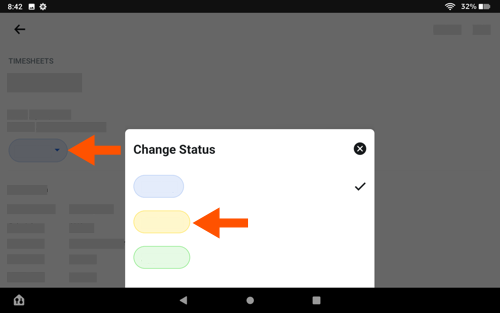
Tippen Sie auf den Status und dann auf Überprüft.
-
Wiederholen Sie die obigen Schritte für jeden Arbeitszeitkarteneintrag in der Zeiterfassungsliste, bis Sie alle Einträge in der Zeiterfassungsliste genehmigt haben.
-
Fahren Sie fort mit Zeiterfassungsliste überprüfen unten.
Zeiterfassungsliste überprüfen
-
Rufen Sie auf Ihrem Android-Mobilgerät das Zeiterfassungslisten-Tool des Projekts auf.
-
Tippen Sie auf die Zeiterfassungsliste, um sie zu überprüfen.
-
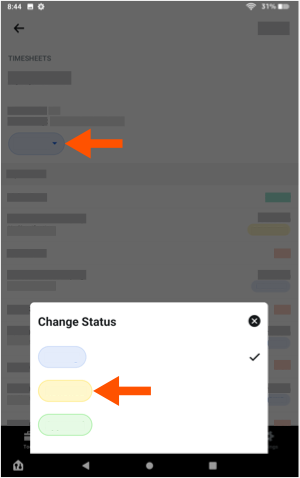
Tippen Sie auf den Status und dann auf Überprüft.
-
Wiederholen Sie die oben beschriebenen Schritte für jede Zeiterfassungsliste, die Sie überprüfen möchten.